NSFW AI Generator for Beginners: A Simple First-Time Guide
A simple, beginner-friendly guide to NSFW AI generation—copy-paste prompts, starter settings, and a 10-minute quickstart to generate your first image.

If you’re brand-new to NSFW image generation, here’s the promise: in about 10 minutes, you’ll paste a short prompt, keep a few sensible defaults, generate one decent image, and save it. We’ll stay practical, avoid rabbit holes, and explain just enough along the way. Quick definitions you’ll see: a prompt is the text of what you want (subject, style, composition, lighting, details); a negative prompt is a short list of things to avoid (e.g., blurry, lowres, extra fingers); and a seed is a number that controls randomness—lock it to reproduce the same image.
Key takeaways
Use a simple formula for your first prompt: Subject + Style + Composition + Lighting + One detail.
Pair it with a tiny negative prompt to reduce common artifacts (e.g., blurry, bad anatomy).
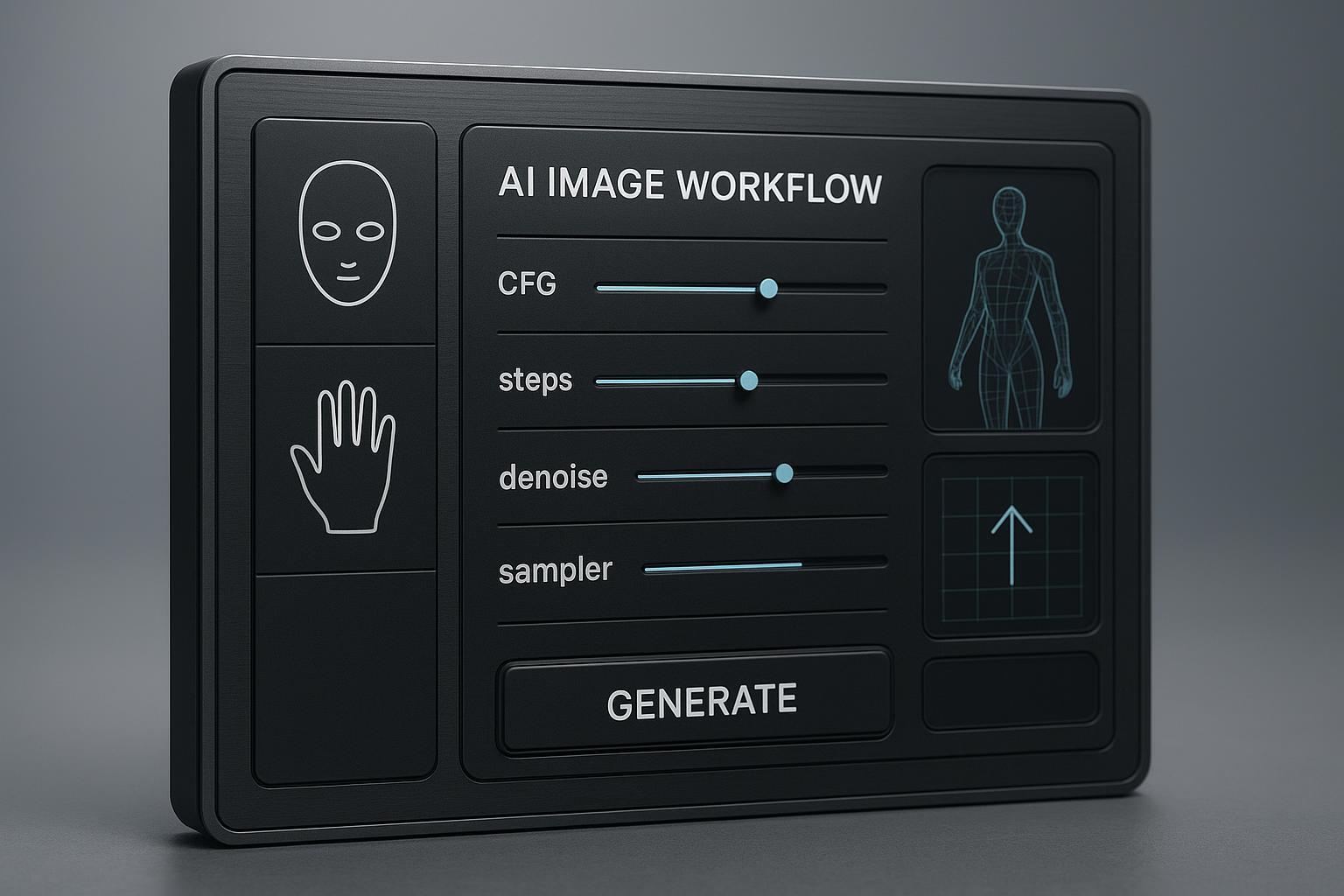
Start with friendly defaults (square image, ~20–25 steps, CFG ≈ 7, a mainstream sampler) and lock the seed once you like a result.
Make one small fix with inpainting if needed; don’t chase perfection on the first run.
Keep it lawful and consensual; never generate or share minor-like images.
The 10-minute quickstart for NSFW AI generator for beginners
Goal: copy, paste, generate, and save—fast.
Copy this minimal first prompt (tasteful, non-explicit):
"Portrait of an adult woman, realistic photo, soft window light, shallow depth of field, natural skin texture"
Copy this short negative prompt:
"blurry, lowres, overprocessed, deformed face, bad anatomy"
Use these friendly defaults:
Aspect ratio: Square (512×512). For portrait, try 512×768.
Steps: 20–25.
CFG (guidance strength): 7.
Sampler (a.k.a. scheduler): DPM++ 2M Karras or UniPC.
Seed: Random for variety; lock the seed once you like a result.
These starting points align with widely shared beginner recommendations from reputable guides such as the Stable Diffusion Art sampler and beginner overviews and the Hugging Face Diffusers docs (SD/SDXL pipelines).
Click Generate. If you like it, Save/Download immediately.
Do one tiny iteration: add or remove just one adjective (e.g., “soft smile” or “neutral background”). Keep everything else the same. This is exactly the kind of flow an nsfw ai generator for beginners should make simple.
Suggested defaults at a glance:
Setting | Beginner default | Why it helps |
|---|---|---|
Aspect ratio | 1:1 (512×512) | Fast and stable for first runs |
Steps | 20–25 | Decent detail without long waits |
CFG | ~7 | Follows the prompt without overcooking |
Sampler | DPM++ 2M Karras or UniPC | Good speed/quality trade-offs |
Seed | Random first, then lock | Variety first; reproducibility later |
For foundational explanations of prompts, CFG, steps, and samplers, see the structured overviews from the Hugging Face Diffusers team in their Stable Diffusion guides and the Stable Diffusion Art sampler primers.
Starter prompts you can paste
Each one includes a compact negative to reduce common artifacts. Keep examples tasteful and technique-focused.
Realistic portrait (quick win)
Prompt: "Adult woman, soft smile, realistic photo, window light, shallow depth of field, natural skin texture"
Negative: "blurry, lowres, overprocessed, deformed face, bad anatomy"
Studio portrait (neutral backdrop)
Prompt: "Adult man, relaxed pose, studio lighting, photorealistic, neutral gray background, crisp detail"
Negative: "cartoon, low quality, extra fingers, poorly drawn hands"
Documentary style
Prompt: "Adult person, candid moment, documentary style, soft overcast light, subtle film grain"
Negative: "plastic skin, overly smooth, distorted features, watermark, text"
Comic-book style
Prompt: "Heroic figure, comic-book style, bold line art, flat colors, dynamic low-angle shot"
Negative: "photorealistic, muddy colors, blurry edges, text, logo"
Impressionist painting
Prompt: "Dreamy portrait, impressionist painting, soft brushwork, dappled light, pastel palette"
Negative: "hard edges, photorealistic, harsh shadows, banding"
Cinematic silhouette
Prompt: "Silhouette figure, golden hour backlight, lens flare, film emulation, anamorphic bokeh"
Negative: "flat lighting, distortion, oversaturated, artifacts"
Prompt structure here follows beginner-friendly patterns documented by the Stable Diffusion Art prompt guide and the Let’s Enhance prompt guide. Those references consistently recommend starting with a clear subject, then adding style, composition, lighting, and a small number of detail terms.
Make it reproducible: seeds in plain English
If you keep all settings the same and lock the seed, you’ll get the same image every time. That’s how you know changes you make actually caused the difference.
Try this quick exercise:
Generate an image you like (random seed).
Copy its seed value and lock it.
Re-generate with one tiny prompt change (e.g., “soft smile” → “serious expression”).
Compare the two results: composition should stay similar while the expression changes.
For a deeper dive into seed control and other parameters, see How to Write Better Prompts for an Uncensored AI Generator on DeepSpicy, which explains seed, sampler, steps, and logging in a hands-on way: https://www.deepspicy.com/blog/how-to-uncensored-ai-prompts/
Authoritative primers on seeds and schedulers are available in the Hugging Face Diffusers Stable Diffusion documentation and Chris McCormick’s explainer on steps and seeds.
One fast fix: inpainting a small area
If a face or hand looks off, a quick inpainting pass can repair just that region while keeping the rest intact.
Simple flow:
Send your image to an inpainting UI.
Paint a mask over only the faulty area (e.g., a hand or face).
Use “inpaint masked area only,” keep mask content as “original,” and start with denoising strength around 0.5–0.75.
Generate a few candidates, refine the mask/strength, and pick the best.
These basics reflect common advice from inpainting primers such as Stable Diffusion Art’s inpainting guide and other reputable tutorials. If multiple passes don’t converge, simplify your original prompt or try a new seed.
A practical example with an adult-allowed tool
Once you’ve produced your first image with the general steps above, you may prefer to use an adult-allowed generator that supports negative prompts, seed locking, and inpainting/outpainting in one place. DeepSpicy supports these workflows and can be used to run the same minimal prompt, pair it with a short negative, pick a 1:1 aspect, lock a seed you like, and iterate in small steps. Learn about uncensored vs. filtered tools and why beginners sometimes pick adult-allowed options to avoid early policy blocks here: https://www.deepspicy.com/blog/uncensored-ai-image-generator-vs-filtered-ai-tools/
Neutral note: When switching tools, keep your prompt, negative prompt, and parameters identical to compare apples to apples.
Quick troubleshooting
Washed out or low detail? Raise steps from 20 → 28 or nudge CFG from 7 → 8.
Wrong subject or composition? Put the subject first; remove conflicting adjectives; try a neutral background.
Hand/face glitches? Keep the short negative list; if needed, inpaint just the problem area.
Random differences across runs? Lock the seed and keep dimensions, steps, sampler, and model/checkpoint the same.
These tips align with beginner-friendly sources like the Diffusers documentation and Stable Diffusion Art’s parameter and troubleshooting guides.
Compliance and safety (informational only)
Always keep it lawful and consensual. Do not create or share images of minors or minor-like depictions, and do not produce non-consensual intimate imagery. Overviews and definitions are available from organizations like RAINN and Enough Abuse.
Useful starting points:
RAINN’s guidance on responding to AI-facilitated abuse: https://rainn.org/consulting-and-training/responding-to-ai-facilitated-abuse-tips-for-schools/
Enough Abuse’s overview of laws related to synthetic CSAM and deepfake nudes: https://enoughabuse.org/get-vocal/laws-by-state/state-laws-criminalizing-ai-generated-or-computer-edited-child-sexual-abuse-material-csam/
Also review platform terms and prohibited uses for generative AI (e.g., Google’s policy baseline): https://policies.google.com/terms/generative-ai/use-policy
This is informational, not legal advice; local laws vary.
Next steps for nsfw ai generator for beginners
If you’re ready to practice with an nsfw ai generator for beginners mindset, register and generate your first image using the minimal prompt + short negative from this guide. For an organized hub of ongoing learning and templates, visit our onboarding destination: https://www.deepspicy.com/nsfw-ai-generator/
Want a deeper primer on prompt blocks, negatives, and seed control? Start here: https://www.deepspicy.com/blog/how-to-uncensored-ai-prompts/
References (trimmed for beginners):
Stable Diffusion Art prompt guide: https://stable-diffusion-art.com/prompt-guide/
Stable Diffusion Art sampler overview: https://stable-diffusion-art.com/samplers/
Hugging Face Diffusers SDXL pipeline docs: https://huggingface.co/docs/diffusers/api/pipelines/stable_diffusion/stable_diffusion_xl
Chris McCormick on steps and seeds: https://mccormickml.com/2023/01/11/steps-and-seeds/